Planet Atmosphere: Difference between revisions
m Fixed annotation on example image Primary Off - 2ndary On. Added example images for Haze density 0 and Bluesky density 0 & 1. Scaled example images to 800 pixels max. Commented out previous example images in case we need to revert. |
Parameters on Main tab |
||
| Line 23: | Line 23: | ||
'''Settings:''' | '''Settings:''' | ||
<ul> | <ul> | ||
* '''Haze density:''' | * '''Haze density:''' "Haze" in Terragen simulates the effect of droplets of water in the atmosphere (fog, mist or rain) but can also be used to create the appearance of dust or smog. The Haze density parameter controls how thick this haze appears. The default value is 1. Low values reduce the density, making clearer skies. High values increase the density, making the haze more opaque and the atmosphere take on more of the '''Haze horizon colour'''. | ||
* '''Haze horizon colour:''' | * '''Haze horizon colour:''' Sets the colour of the haze. This should normally be a greyish colour (a value of 0.25 represents 100% albedo here). As the haze becomes more dense or viewed through a large distance, the colour of the haze will converge to this colour. However, the overall colour of atmosphere is a mixture of the Haze horizon colour and Bluesky horizon colour (which depends on the density settings) and is also affected by the lighting. | ||
* '''Bluesky density:''' | * '''Bluesky density:''' "Bluesky" in Terragen simulates the Rayleigh scattering phenomenon due to air molecules in the atmosphere. Rayleigh scattering causes the the sky to be blue during daylight and reddens the sun at sunset. It also affects the lighting of the scene and the appearance of distant objects. The Bluesky density parameter controls the strength of this scattering effect, or the density of air molecules in the atmosphere. | ||
* '''Bluesky horizon colour:''' | * '''Bluesky horizon colour:''' Sets the convergence colour of the "bluesky" component. This should normally be a greyish colour (not too blue). This colour emerges where there is an equilibrium between inscattering and outscattering, but you can change it for artistic effect. This occurs wherever the bluesky becomes more dense or objects are viewed through a large distance (e.g. at the horizon) and is easier to see when haze density is low. Bluesky horizon colour can also be expressed with the Bluesky additive (inscattering) and the Redsky decay (outscattering) parameters, because of the mathematical relationship between them. ''Changing this value automatically changes the Bluesky additive parameter.'' | ||
* '''Bluesky additive:''' | * '''Bluesky additive:''' Allows for the independent adjustment of the additive blue effect (inscattering). ''Changing this value automatically changes the Bluesky horizon colour because the horizon colour is the equilibrium between inscattering and outscattering.'' | ||
* '''Redsky decay:''' | * '''Redsky decay:''' Allows for the independent adjustment of the reddening effect (outscattering). ''Changing this value automatically changes the Bluesky horizon colour because the horizon colour is the equilibrium between inscattering and outscattering.'' | ||
</ul> | </ul> | ||
[[File:Atmo_24_HazeDensity0.jpg|200px|Haze density = 0]][[File:Atmo_17_HazeDensity1.jpg|200px|Haze density = 1.0]][[File:Atmo_18_HazeDensity4.jpg|200px|Haze density = 4]][[File:Atmo_19v2_HazeDensity16.jpg|200px|Haze density = 16]] | [[File:Atmo_24_HazeDensity0.jpg|200px|Haze density = 0]][[File:Atmo_17_HazeDensity1.jpg|200px|Haze density = 1.0]][[File:Atmo_18_HazeDensity4.jpg|200px|Haze density = 4]][[File:Atmo_19v2_HazeDensity16.jpg|200px|Haze density = 16]] | ||
Revision as of 03:20, 12 September 2020

Overview
The Planet Atmosphere node provides all the effects of a full planetary atmosphere, including blue sky, the red of sunsets, and distance-enhancing haze. You can control many aspects of the atmosphere to fine-tune or enhance a realistic Earth-like atmosphere, or create completely alien skies. The default scene includes a Planet Atmosphere node. Note that clouds are created separately using the Add Cloud Layer button.
Settings:
- Enable primary: Controls the visibility of the atmosphere itself, primarily manifested as haze. When enabled the camera directly sees the atmosphere, but when disabled causes the sky to become invisible to the camera. If Enable secondary is on, the atmosphere will still affect the lighting on any clouds and the terrain in the project.
- Enable secondary: Responsible for the global illumination, reflections and shadows of the atmosphere. When enabled, shadows and reflections of the atmosphere are rendered. When disabled, they are not rendered, therefore the reddening of the light at sunset won’t be visible or the atmosphere on the dark side of a planet will still be fully lit because the shadows aren't calculated.


Main Tab

Settings:
- Haze density: "Haze" in Terragen simulates the effect of droplets of water in the atmosphere (fog, mist or rain) but can also be used to create the appearance of dust or smog. The Haze density parameter controls how thick this haze appears. The default value is 1. Low values reduce the density, making clearer skies. High values increase the density, making the haze more opaque and the atmosphere take on more of the Haze horizon colour.
- Haze horizon colour: Sets the colour of the haze. This should normally be a greyish colour (a value of 0.25 represents 100% albedo here). As the haze becomes more dense or viewed through a large distance, the colour of the haze will converge to this colour. However, the overall colour of atmosphere is a mixture of the Haze horizon colour and Bluesky horizon colour (which depends on the density settings) and is also affected by the lighting.
- Bluesky density: "Bluesky" in Terragen simulates the Rayleigh scattering phenomenon due to air molecules in the atmosphere. Rayleigh scattering causes the the sky to be blue during daylight and reddens the sun at sunset. It also affects the lighting of the scene and the appearance of distant objects. The Bluesky density parameter controls the strength of this scattering effect, or the density of air molecules in the atmosphere.
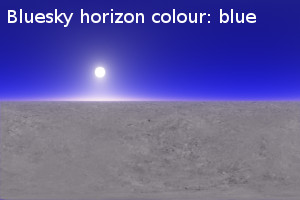
- Bluesky horizon colour: Sets the convergence colour of the "bluesky" component. This should normally be a greyish colour (not too blue). This colour emerges where there is an equilibrium between inscattering and outscattering, but you can change it for artistic effect. This occurs wherever the bluesky becomes more dense or objects are viewed through a large distance (e.g. at the horizon) and is easier to see when haze density is low. Bluesky horizon colour can also be expressed with the Bluesky additive (inscattering) and the Redsky decay (outscattering) parameters, because of the mathematical relationship between them. Changing this value automatically changes the Bluesky additive parameter.
- Bluesky additive: Allows for the independent adjustment of the additive blue effect (inscattering). Changing this value automatically changes the Bluesky horizon colour because the horizon colour is the equilibrium between inscattering and outscattering.
- Redsky decay: Allows for the independent adjustment of the reddening effect (outscattering). Changing this value automatically changes the Bluesky horizon colour because the horizon colour is the equilibrium between inscattering and outscattering.


Height Control Tab

Settings:
- Haze exp height:
- Bluesky exp height:
- Ceiling adjust:
- Ceiling:
- Floor:
Lighting Tab

Settings:
- Haze glow amount:
- Haze glow power:
- Bluesky glow amount:
- Bluesky glow power:
- Rayleigh phase function:
- Enviro light:
- Enviro light tint:
- Anisotropic enviro light:
- Better cache radius:
Functions Tab

Settings:
- Shadow function:
Tweaks Tab

Settings:
- Ambient:
- Fake dark power:
- Fake dark sharpness:
- Bluesky density colour:
- Redsky decay colour:
- Ozone factor:
- Improved glow model:
- Reset Tweaks:
Quality Tab

Settings:
- Number of samples:
- Adjust to distance:
- Receive shadows from surfaces
Example movies

Example Picture
|
Haze horizon colour: blue |
Haze horizon colour: green |
Haze horizon colour: red |
|
Haze horizon colour: white |
Haze horizon colour: yellow | |
|
Bluesky density: 0.01 |
Bluesky density: 0.5 |
Bluesky density: 4 |
|
Bluesky density: 16 |
Bluesky density: 32 |
Bluesky density: 64 |
|
Bluesky horizon colour: blue |
Bluesky horizon colour: green |
Bluesky horizon colour: red |
|
Bluesky horizon colour: yellow |